Posicionar puntos en coordenadas de la ventana en Geogebra
Este tutorial lo he compilado en Latex también: Descárgalo aquí
La idea original para esta construcción está tomada de esta entrada de Michel Horvath. Si quieres descargar un recurso donde se haya implementado, puedes hacerlo aquí.
Y esta construcción que ves a continuación lo hace de forma aleatoria.
Introducción
Cuando queremos situar un punto en Geogebra lo hacemos empleando el sistema de posicionamiento de Geogebra. Este sistema se basa en el eje de coordenadas del programa, es decir, los puntos se posicionan respecto a los ejes x e y. Sin embargo, hay ocasiones en que queremos colocar los puntos en función de la ventana visible, por ejemplo, para posicionar un punto en una región visible.
En resumen, para crear un sistema de posicionamiento en píxeles en Geogebra debemos relacionar dos sistemas de posicionamiento: el sistema propio del programa (ejes coordenados) y el sistema de la pantalla (píxeles).
Sistema de coordenadas de Geogebra
Para saber el ancho y alto de la pantalla en un momento dado necesitamos las esquinas de la ventana activa (en coordenadas de Geogebra). Usaremos la función Corner con los números del 1 al 4 para obtener estas coordenadas.
Ejecuta los comandos siguientes en Geogebra usando la barra de entrada:
| Text Only | |
|---|---|
1 2 3 4 | |

Hemos definido las variables corner1, corner2, corner3 y corner4 que representan las cuatro esquinas de la ventana de Geogebra. Observa cómo se disponen:
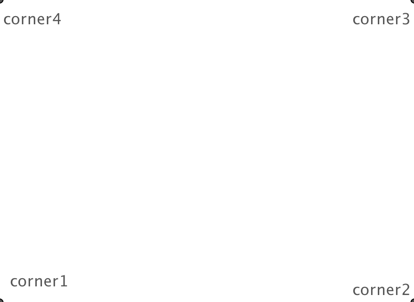
Ahora que tenemos las esquinas podemos calcular el ancho total de la ventana pero no en pixeles sino en coordenadas de Geogebra. Esto lo hacemos usando el comando distance que nos da la distancia entre dos puntos. Vuelve a usar la barra de entrada de Geogebra para introducir los comandos siguientes:
| Text Only | |
|---|---|
1 2 | |
Y por último vamos a almacenar en estas variables los valores de las coordenadas x e y de las esquinas. Las usaremos para posicionar puntos correctamente.
| Text Only | |
|---|---|
1 2 | |
El comando corner(5) crea un punto con las coordenadas de la venta. Vamos a ejecutar un comando en Geogebra para almacenar los valores de la venta.
| Text Only | |
|---|---|
1 | |
Ya podemos calcular el alto y ancho de la ventana con estos comandos (en píxeles)
| Text Only | |
|---|---|
1 2 | |
Factores de conversion
Dado que queremos hacer una conversión entre ambos sistemas de posicionamiento, lo que pretendemos es transformar las coordenadas de un punto de la ventana (y por tanto en píxeles) en un punto en coordenadas de Geogebra (por tanto en coordenadas de los ejes de coordenadas de Geogebra). Supongamos que quiero colocar un punto en el centro de la pantalla. Como conozco el tamaño de la venta en pixeles, sé que el punto se encuentra en:
Pero ese sistema en píxeles no me vale para posicionar el punto. Necesito convertirlo a coordenadas de Geogebra. Fijémonos en la coordenada \(x_1\) del punto y establezcamos la siguiente proporción:
Despejando en la igualdad tenemos que el valor que estamos buscando es:
Luego es fácil ver que el factor de conversión para pasar de coordenadas en pixeles a coordenadas en los ejes es:
$ \displaystyle factorX=\frac{distX}{winWidth}$
Análogamente:
\(\displaystyle factorY=\frac{distY}{winHeight}\)
Dado que ambos factores son iguales, sólo vamos calcular uno de ellos al que llamaremos \(factorXY\):
Ejecuta ahora el comando:
| Text Only | |
|---|---|
1 | |
Empleando Javascript
Ahora puedes usar Javascript en un elemento del escenario (por ejemplo un botón) para crear nuevos elementos y posicionarlos en relación a la ventana.
| Text Only | |
|---|---|
1 2 3 4 5 6 7 8 9 10 11 12 13 14 15 16 17 18 19 | |
Ahora que lo hemos entendido, para facilitarnos el proceso, crearemos una función en Javascript que hace el proceso más sencillo. La función recibe las coordenadas de los puntos x e y en píxeles y las convierte a coordenadas de los ejes.
| Text Only | |
|---|---|
1 2 3 4 5 6 7 8 9 10 11 12 13 14 15 16 17 18 19 20 21 22 | |
Si quieres crear una sencilla aplicación para generar puntos aleatorios que siempre se sitúen en la zona visible lo puedes hacer con siguiente código. Y el ejemplo para descargar lo puedes encontrar aquí: Aplicación en GeoGebra
| Text Only | |
|---|---|
1 2 3 4 5 6 7 8 9 10 11 12 13 14 15 16 17 18 19 20 21 22 23 24 25 26 27 28 29 30 31 32 33 34 35 36 37 38 39 40 41 42 43 44 45 46 47 48 49 50 | |